The Salesforce Integration user license provides an economical option for system-to-system integrations but arrives with significant constraints. Most notably, these users cannot execute Flows by default—a limitation that can obstruct automation efforts.
However, the restriction can be overcome through strategic permission configuration. The process involves five steps:
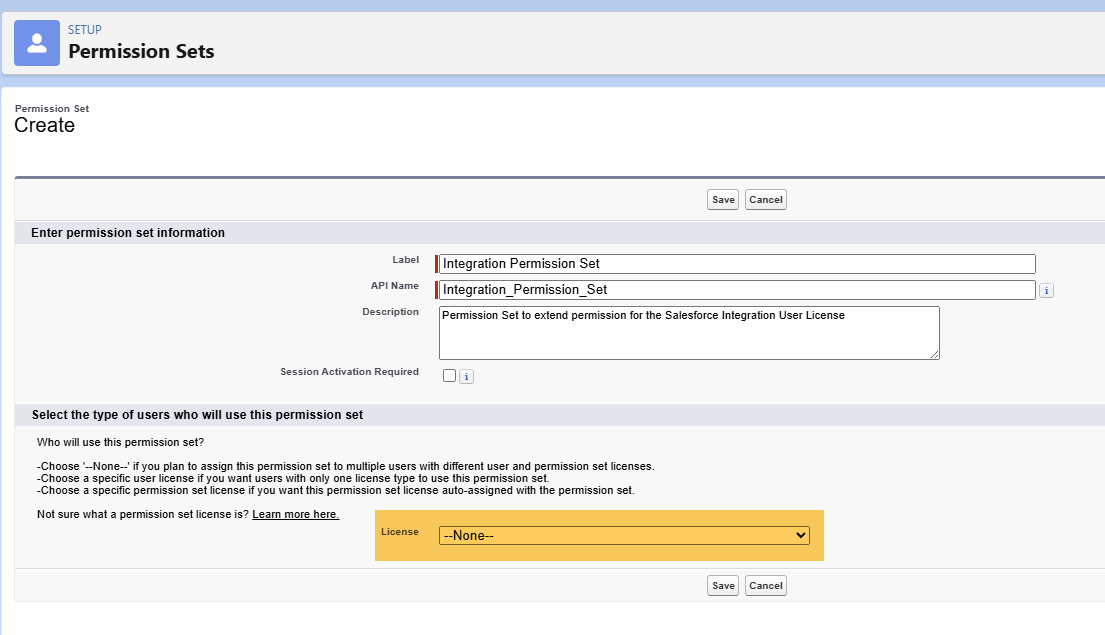
Step 1: Create Permission Set
Establish a new permission set titled “Integration Permission Set” with no assigned license.
Step 2: Create Integration User
Set up a dedicated user with the “Salesforce Integration” license and assign the “Salesforce API Only System Integration” profile.
Step 3: Assign Permission Set License
This represents the critical phase. The Salesforce API license defaults to severe restrictions. Navigate to “Permission Set License Assignments” and enable the “Salesforce API Integration” license—this restores standard functionality.


Step 4: Enable Run Flows Permission
Access the Integration Permission Set’s App Permissions section and activate the “Run Flows” checkbox.


Step 5: Assign Permission Set to User
Complete the configuration by assigning your newly created permission set to the integration user through the Manage Assignments button.
Note: Without enabling the permission set license in Step 3, attempting to assign the permission set generates an error message regarding incompatible user licenses.